
If you’ve ever sent a polite “hey, just following up on those photos” email for the third time in a week, you already know: email is a bad way to collect photos from clients. It worked when you needed two pictures from one person, twice a year. It does not work when you’re running campaigns, building case studies, or producing social content where the photos are the deliverable.
This guide is for anyone whose inbox has become an unofficial photo dropbox — social media managers, event coordinators, agency account leads, real estate teams, internal comms, anyone who hears “just email them to me” and then quietly dies inside. We’ll walk through why email breaks down at scale, the five workarounds people actually use today, and a simple workflow you can switch to this week to collect photos from clients without the chase.

Why email breaks down for photo collection
Email is fine for a sentence. It’s a terrible container for media. The reasons stack up fast.
Attachment size limits cap the workflow. Gmail caps attachments at 25 MB. A handful of phone photos shot at full resolution will blow past that — especially if your client is on an iPhone shooting in HEIF, or has a recent Android with 50+ megapixel sensors. The “your message could not be delivered” bounce-back lands the next morning, and the back-and-forth restarts.
HEIC files just… don’t open. Apple’s default photo format on modern iPhones is HEIC. Most Windows machines don’t preview HEIC out of the box. Your client sends ten beautiful photos, you can’t see any of them, and now you’re emailing them back asking for “the regular kind, can you send PNGs or something.” This is not a great look.
Thread sprawl destroys context. A two-day campaign collection turns into six threads with eight clients. Which photos went with which event? Which version is the latest? Did Maria ever send hers, or did her email bounce? You’re now an archaeologist, not a marketer.
There’s no submission record. When you ask “did you send those?” you’re really asking “are they in my inbox somewhere?” Without a structured intake, there’s no list of who has and hasn’t responded — only a faint sense of guilt and the reply-all you’re afraid to send.
Compression silently degrades quality. Some email clients re-compress images. The photo your client took at 4MB lands in your inbox at 800KB, with the resolution your designer can’t actually use.
If any of that sounds familiar, the answer isn’t a better-worded email. It’s a different system.

Five ways to collect photos from clients (ranked by friction)
Here are the five common approaches. Each works for some situations and falls apart in others. Pick based on how often you do this and how much it matters that the workflow is clean.
1. Email attachments (where most people start)
How it works: you ask, they reply with photos attached.
Where it works: a single photo, a single time, from a tech-comfortable client who happens to send everything in a usable format on the first try. Wedding photographers receiving one specific shot from a planner. The occasional one-off.
Where it breaks: literally everywhere else. Size limits, HEIC issues, thread sprawl, no record, compression. If you’re asking the same person for photos more than twice a year, email is costing you more time than it saves.
2. WeTransfer or Dropbox Transfer
How it works: client uploads files to a transfer service, you get a download link.
Where it works: ad-hoc transfers of large files where you trust the client to follow through. A photographer sending you the final gallery from a shoot. A vendor sending you a single batch of assets.
Where it breaks: there’s no project structure (every transfer is its own one-off), no branding (your client gets a WeTransfer-branded interface, not yours), no record of who has and hasn’t sent, and links expire — usually right when you need to re-download something. WeTransfer wasn’t built for recurring collection. Using it that way is using a hammer to push in a thumbtack.
3. Google Drive shared folders
How it works: you create a folder, share it with edit access, the client uploads.
Where it works: when the client already has a Google account, knows how to use it, and is going to be a long-term collaborator. Internal teams. Long-running agency-client relationships.
Where it breaks: external uploaders. Asking a wedding guest, an event attendee, a brand ambassador, or a one-time customer to “request access to a Drive folder” is a guaranteed drop-off. Permissions confusion is the most common failure mode. Even when it works, you’ve now mixed their files into your Drive structure with no clean separation.
4. Google Forms with file upload
How it works: you build a form with a file-upload question, share the link, photos land in a Drive folder tied to the form.
Where it works: this is the closest functional match to a dedicated tool. Free, decent enough, no account needed if your form is set up right (technically Google Forms still requires login for file upload — a known limitation that has tripped up a lot of teams).
Where it breaks: the file upload field requires the uploader to have a Google account and be signed in. That alone disqualifies it for most external collection. On top of that, the cap is 10 files per question, the interface is unmistakably “Google form survey” (not branded for you), HEIC support is unreliable, and the project organization is whatever folder structure you build manually in Drive. Workable, but not pleasant.
5. A purpose-built photo collection tool
How it works: you create a project, get a link or QR code, share it. Anyone with the link uploads photos in their browser. No account, no app, no friction. You see submissions in a clean dashboard, organized by project.
Where it works: anywhere you collect photos more than occasionally. Social media managers running ongoing UGC campaigns. Event teams collecting attendee photos. Agencies receiving client submissions. Schools, sports orgs, real estate, hospitality — anyone who used to say “just email me your photos” and is ready to stop.
Where it breaks: very low-volume, one-time use. If you genuinely only need to receive photos once a year, the dedicated tool is overkill (though most have free trials that make it worth a look anyway).
This is the category Picly is built for. We deliberately don’t compete with WeTransfer for one-off file transfers — it’s a different job. We do compete with the tangle of email threads, expired Dropbox links, and Google Forms held together with hope.
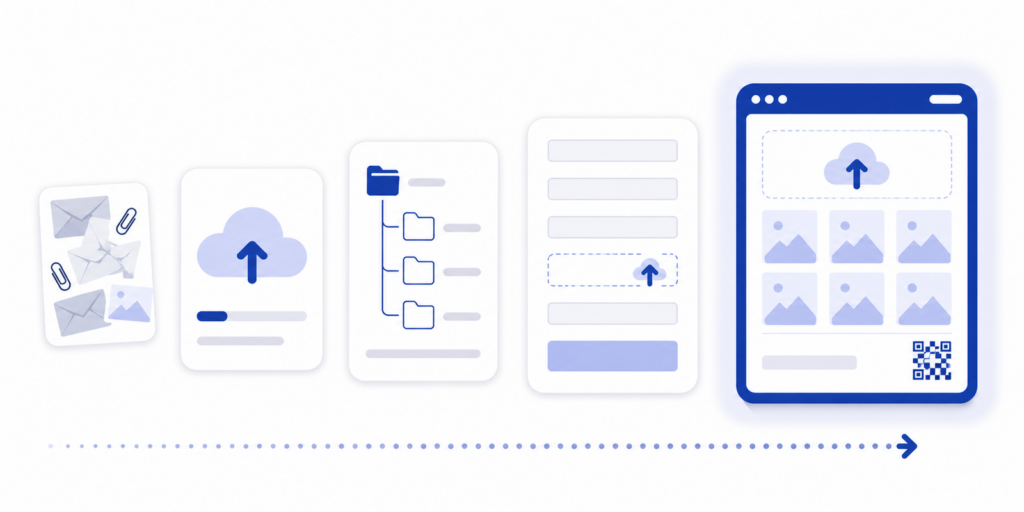
How to pick the right approach
Three questions sort this quickly.
How often do you need to collect photos from outside your team? If the honest answer is “every week” or “every campaign,” you’ve outgrown email. The compounding cost of small frictions is enormous over a year.
Who’s uploading? If it’s an internal teammate or a long-term collaborator with a Google account, Drive is fine. If it’s a client, an event attendee, a brand ambassador, or anyone else who shouldn’t have to learn your tools — you need something with no signup wall.
Do you need any project organization? If photos from different campaigns or events end up in the same place, you’ll spend more time sorting than collecting. Project-based intake is the single biggest workflow upgrade most teams skip.
If all three answers point to “frequent, external, organized” — get a real tool. If even one answer is “rarely, internal, doesn’t matter” — keep using what you have.
A simple workflow that works
For teams switching off email, the workflow that holds up looks like this.
One project per collection effort. “Spring Gala 2026,” “March Product Shoot,” “Q2 Customer Spotlights.” Each gets its own intake link. Don’t try to use one mega-bucket — you will regret it the first time you have to find one specific batch six months later.
One link per project, shared two ways. A URL you can paste in email, SMS, or your campaign brief. A QR code for any printed material, signage, or in-person handoff. Same link, different surface.
One custom message that does the work for you. When the uploader lands on the page, they should see your name, a one-line reminder of what they’re submitting (and what’s useful — landscape vs. portrait, well-lit, no group shots, etc.), and a button. Their entire interaction takes under a minute. They don’t sign up, they don’t install anything, they don’t request access.
One review pass per session. When new photos come in, you see a session in your dashboard, scan the thumbnails, and either download, ZIP, or send straight to a Drive folder for the rest of your team. Sessions are tied to the project, so you always know what came in for what.
The whole point is to convert “did so-and-so ever send those photos?” into a visible, scannable list — and to convert “let me dig through my inbox” into a single dashboard view. Once you’ve felt the difference, you don’t go back to email.
If you want to set this up for your team, Picly’s free 30-day trial gives you everything above — project-based intake, branded upload pages, QR codes, and Google Drive export — with no commitment.

Frequently asked questions
What’s the maximum file size I can collect from clients? Email tops out around 25 MB per message. Dedicated photo tools like Picly typically don’t have a per-file cap that matters in practice for phone photos — the constraint is your storage plan, not the upload itself.
How do I handle HEIC files from iPhone clients? Email is the worst offender — HEIC often doesn’t preview on Windows machines. A dedicated tool that natively supports HEIC/HEIF means you (and your designer) can see and use the files without conversion gymnastics.
Can I collect photos from someone who doesn’t have a Google account? Not with Google Forms file upload, which requires the uploader to be signed in to Google. Yes, with a tool built for external collection — uploaders open a link in any browser, on any device, with no account.
How do I keep different campaigns or events separate? Use project-based collection. Each project gets its own link and dashboard, so submissions never mix across campaigns. This is the single biggest workflow upgrade most teams underestimate.
How long does it take to switch off email collection? About fifteen minutes for the first project. Sign up, name the project, copy the link, send it to your contacts. The hardest part is breaking the habit of typing “just email them to me.”
Ready to stop chasing photos? Try Picly free for 30 days — no setup, no apps for your clients, just a clean link they tap to upload.